Hostaway WordPress Connector settings
Once installed and activated, plugin settings are at Hostaway → Settings. This document explains each tab and what every option controls. It also covers connecting Hostaway, copying listings, and testing a booking.
Before you start
Hostaway is your source of truth. WordPress is the public site. This plugin copies listings down from Hostaway and sends bookings back up.
- A Hostaway account with at least one listing
- WordPress admin access (
/wp-admin) - The Bizdesire Advanced Connector for Hostaway plugin
Get Hostaway keys
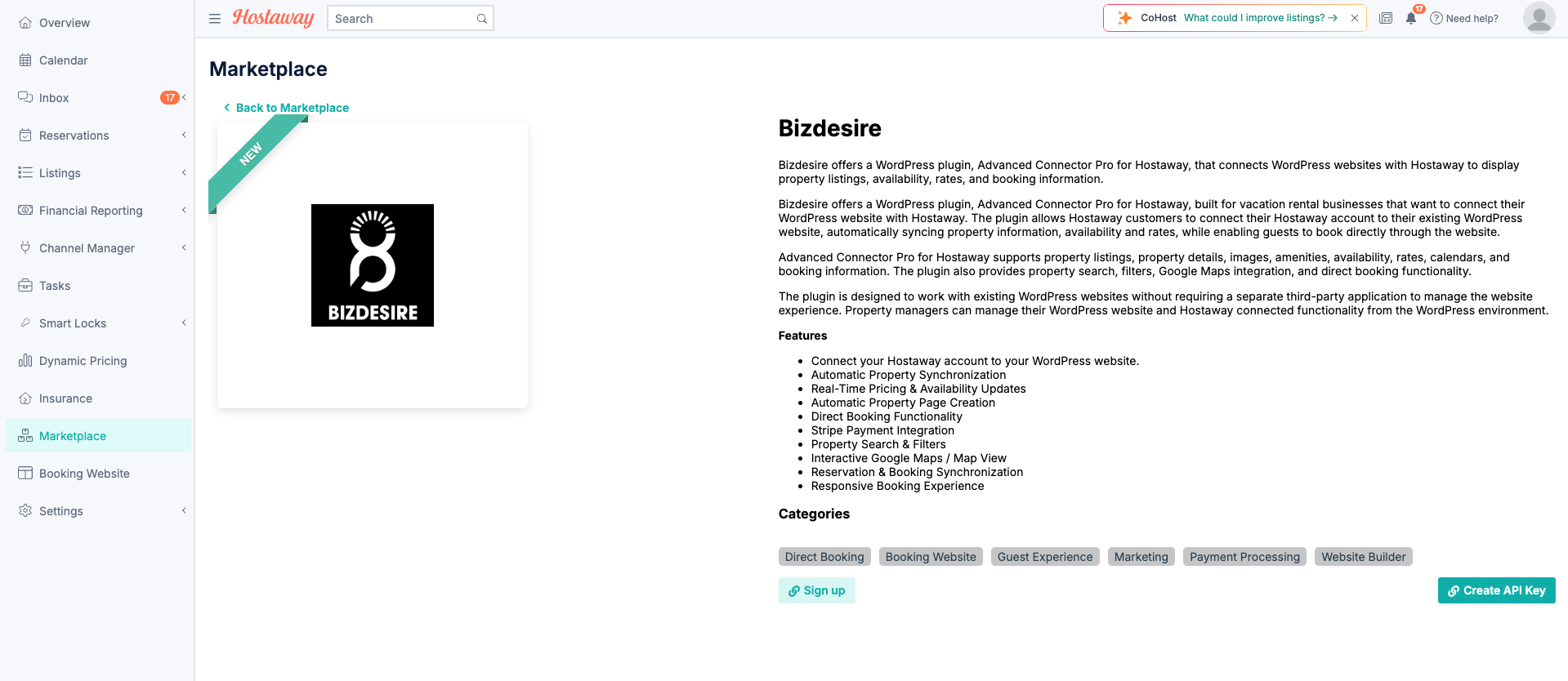
Your Hostaway email and password will not work in WordPress. Create an API key in Hostaway (Bizdesire partner), then paste it into the plugin.
- Go to the Hostaway Dashboard
- Open
- Search for Bizdesire and open it
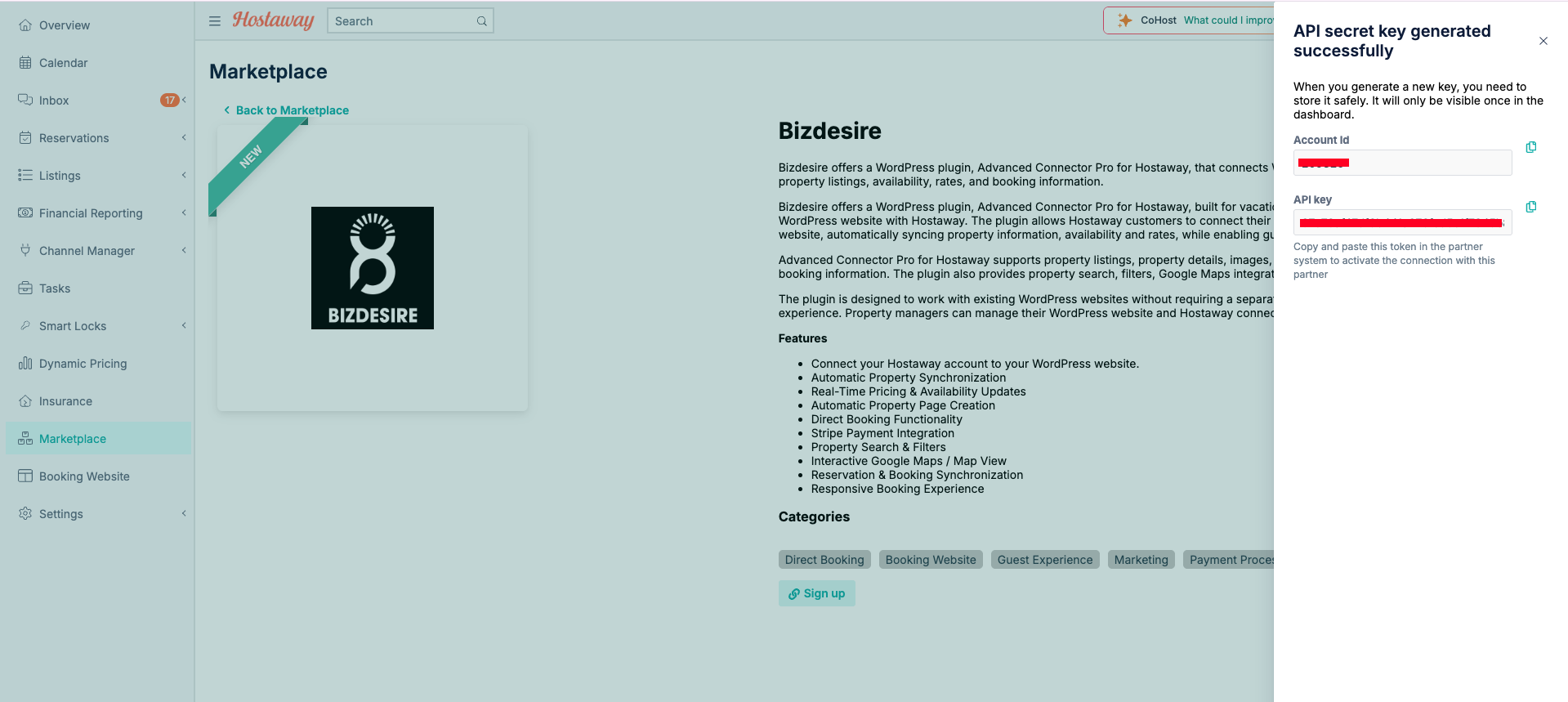
- Click Create API Key
- Copy the Account ID and API key — the key is shown only once
- Keep them somewhere safe for later
Install the plugin
- WordPress → →
- Search Bizdesire Advanced Connector for Hostaway, or upload the zip
- Install, then Activate
A menu appears. The plugin also creates Properties, Search, Checkout, and Thank You pages.
General
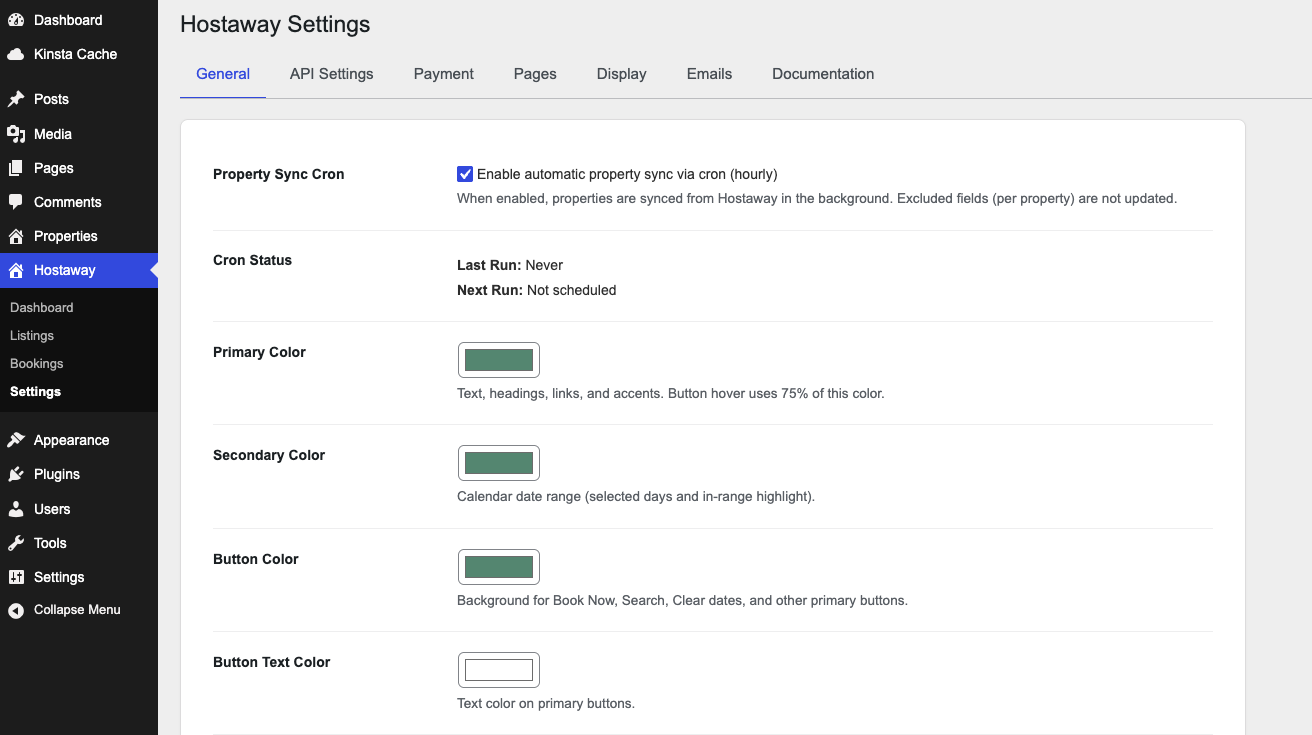
Right after activate, open Hostaway → Settings → General. Turn on hourly sync here, then set brand colors and type.
Property Sync Cron
Enable Enable automatic property sync via cron (hourly) to pull listing updates from Hostaway in the background every hour. Photos, prices, calendars, and other Hostaway fields refresh on imported properties. Fields you marked as excluded on a property are not overwritten.
When this is off, listings update only when you import them from Hostaway → Listings.
Cron Status
Read-only. Last Run is the last successful automatic sync. Next Run is when WordPress is scheduled to sync again. Never / Not scheduled means the cron checkbox is off or WordPress cron has not fired yet.
Primary Color
Sets text, headings, links, and accents on listing, search, checkout, and thank-you screens. Button hover uses 75% of this color.
Secondary Color
Sets the calendar date-range highlight (selected days and in-range dates).
Button Color
Background for Book Now, Search, Clear dates, and other primary buttons.
Button Text Color
Text color on those primary buttons.
Font Family
Font used on Hostaway front-end screens. Use Theme Font (Default) keeps your theme’s type. Pick Inter, Roboto, Open Sans, Poppins, Lato, Montserrat, Playfair Display, or Merriweather to override it. Choose Custom Font to type a CSS font stack.
Custom Font Family
Shown only when Font Family is Custom Font. Enter a CSS value such as 'Your Font', sans-serif. The font must already be loaded by the theme or another plugin.
Base Font Size
Root size for Hostaway screens (for example 16px or 1rem). Leave empty to use the theme default.
Border Radius
Corner rounding for buttons and cards (for example 8px). Set 0 for square corners.
Connect and test
Open → → . Paste your Account ID and API key from Bizdesire, click Save Changes, then use the buttons below.
- Hostaway Client ID: Account ID from Marketplace → Bizdesire → Create API Key.
- Hostaway Client Secret: API key from the same Hostaway panel. Treat it like a password.
- Booking Engine Subdomain: Optional. The Hostaway Booking Engine hostname (for example
book.yoursite.com), from Hostaway → Booking Engine → Website. - Test Connection: Checks that the keys work and shows listing count and API status.
- Preview Listings: Shows listing names from Hostaway without importing them yet.
- Clear Cache: Drops cached Hostaway API data so the next request is fresh.
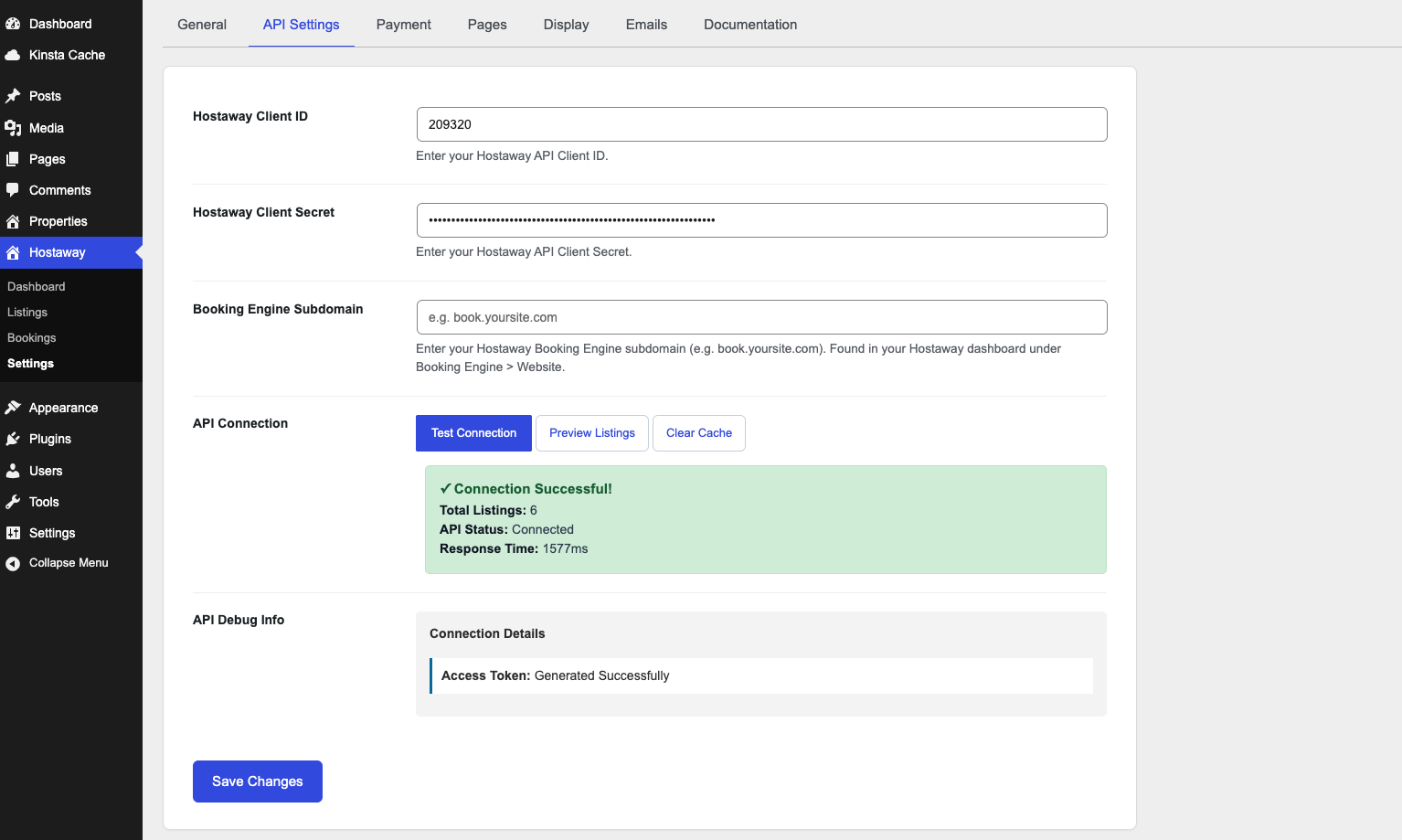
If the test fails: re-paste both keys (no spaces), save, then test again. Do not import until this works.
Copy listings
Go to → . Import one listing first, check it, then import the rest.
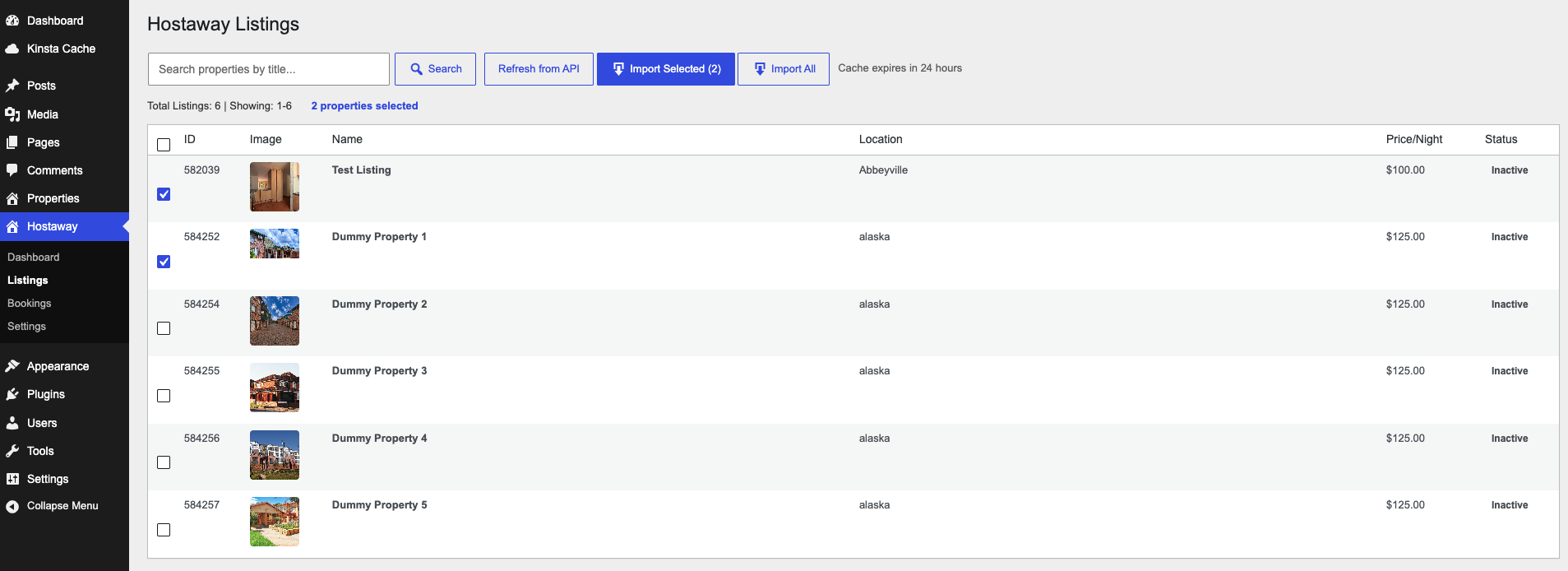
Photos, description, amenities, rules, prices, and calendar come from Hostaway. Importing again updates an existing property. Add new rentals in Hostaway, then import them here.
Check the public site
- Open the Properties page and click the listing
- Confirm photos, details, and calendar look right
- Make sure the property is Published, not Draft
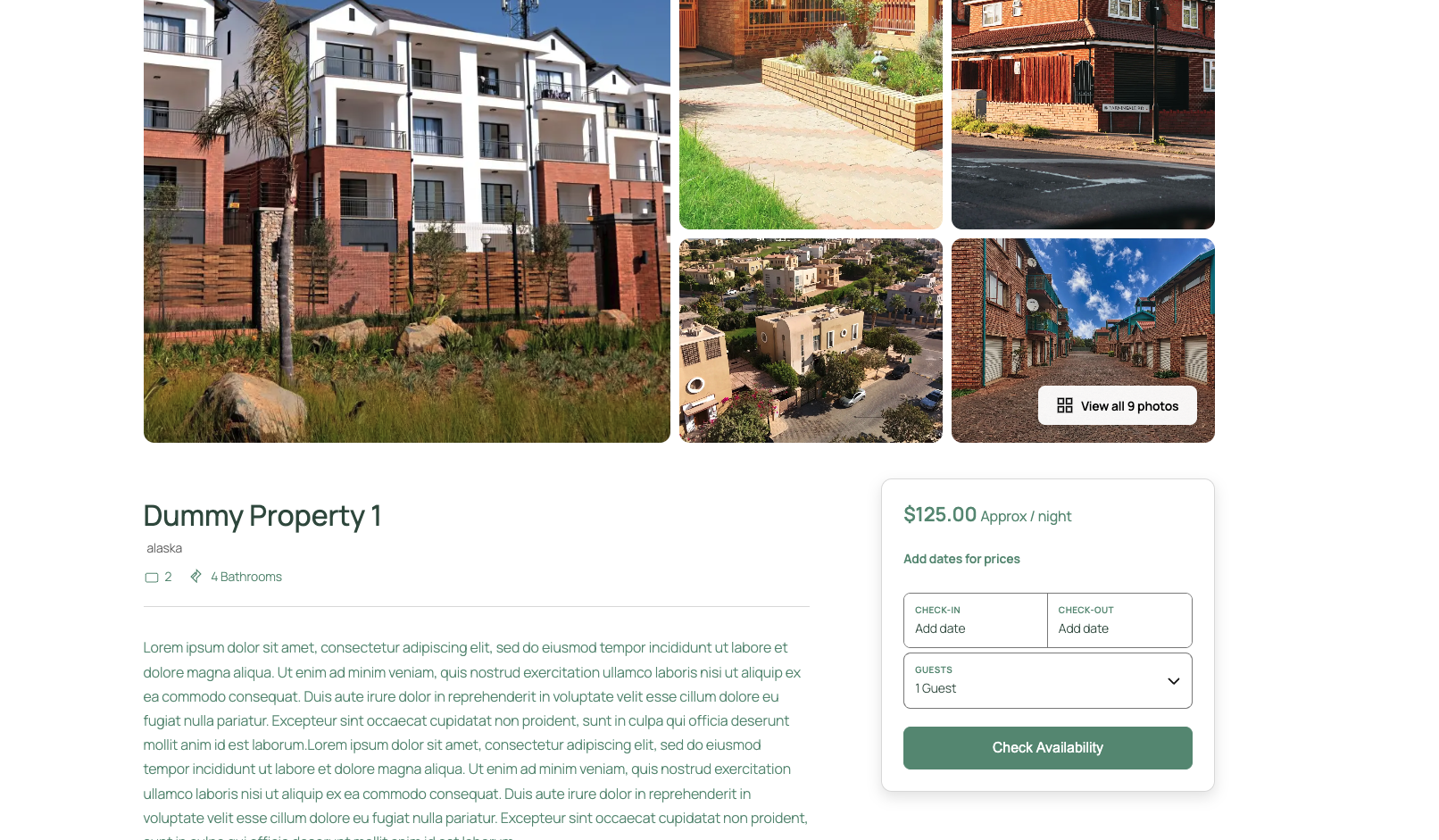
Colors and grid options: → . Which WordPress pages to use: → .
Test a booking
- On the property page, pick free dates and confirm the total
- Checkout: name, email, phone, then complete booking
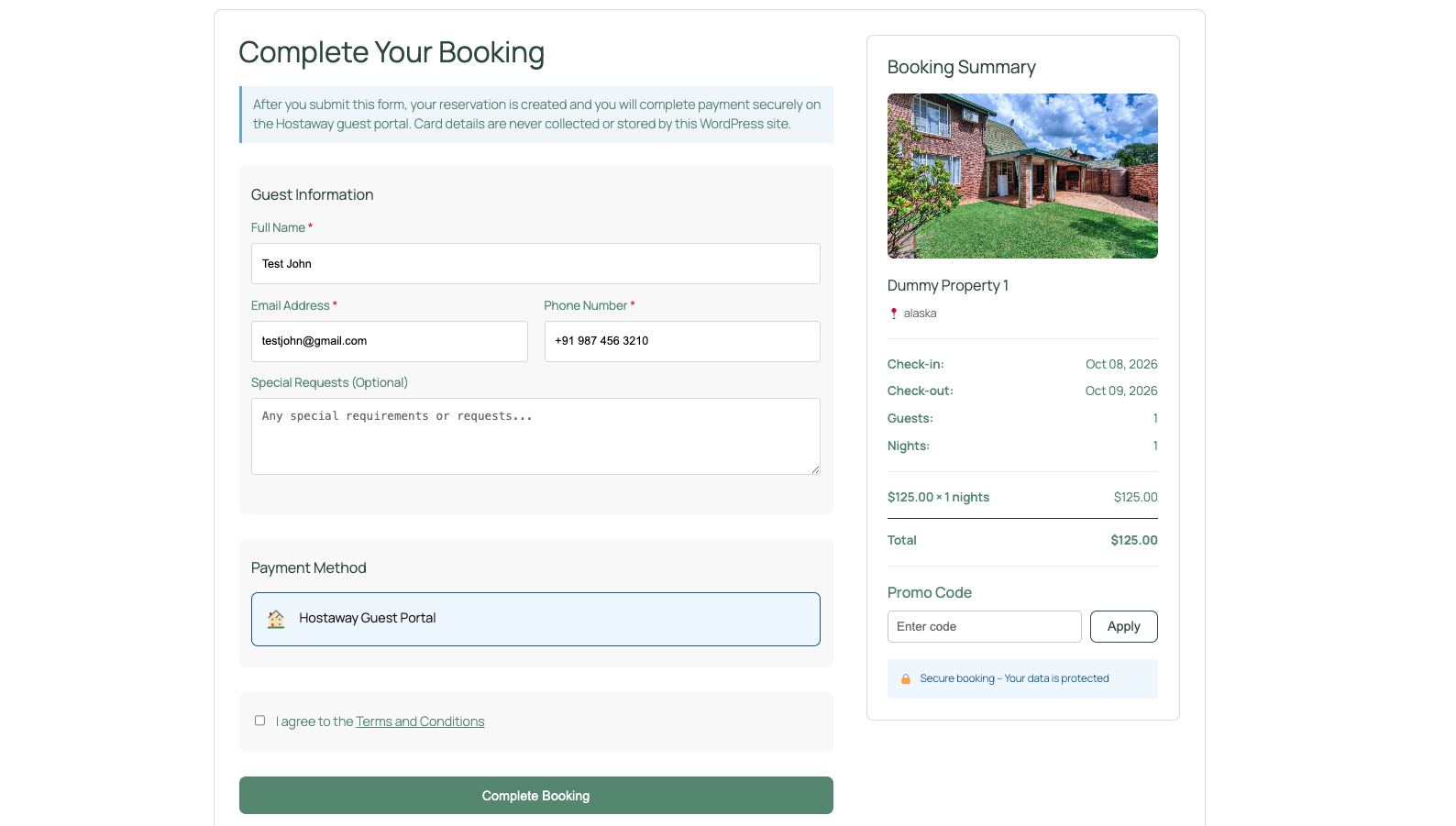
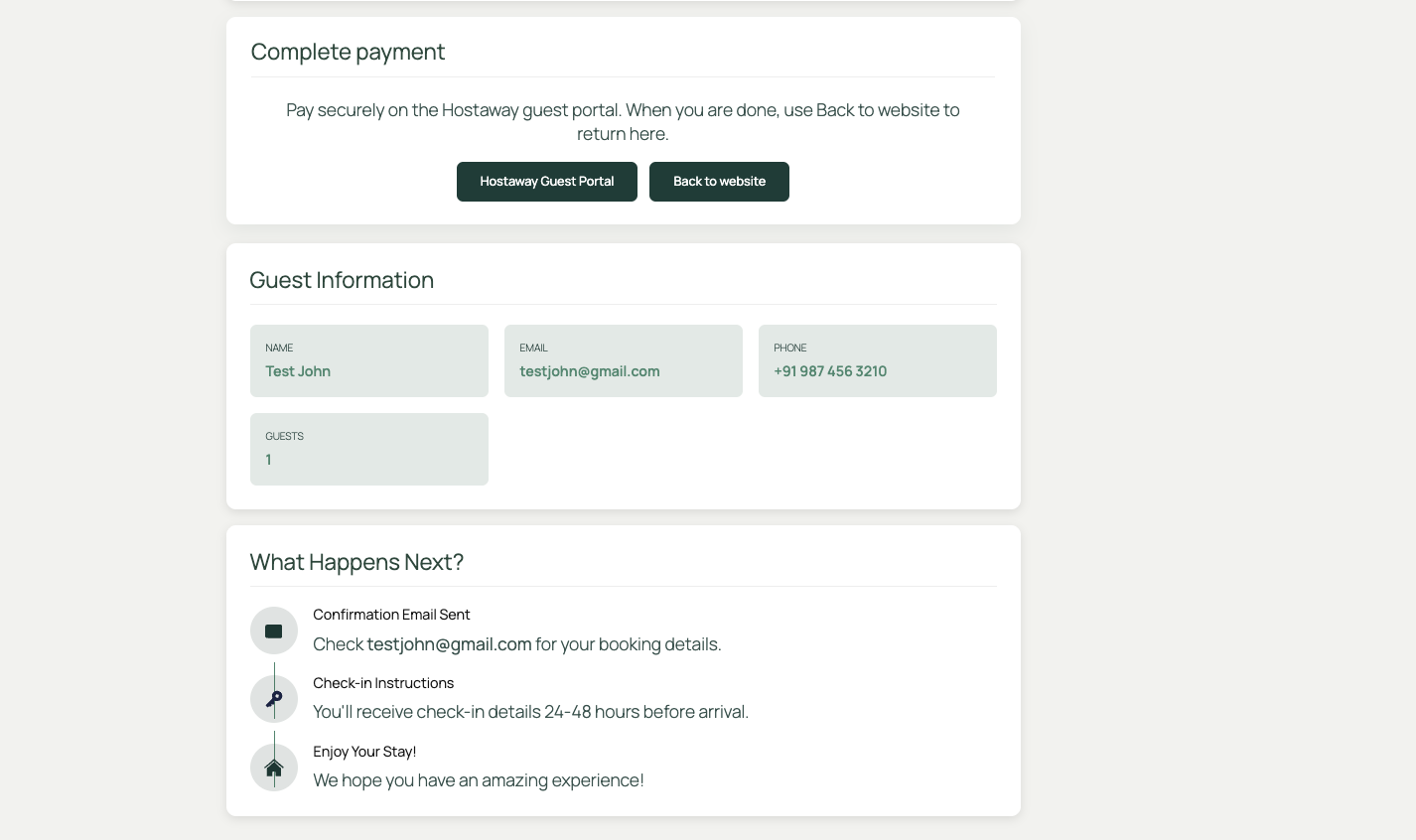
- You should land on the Thank You page
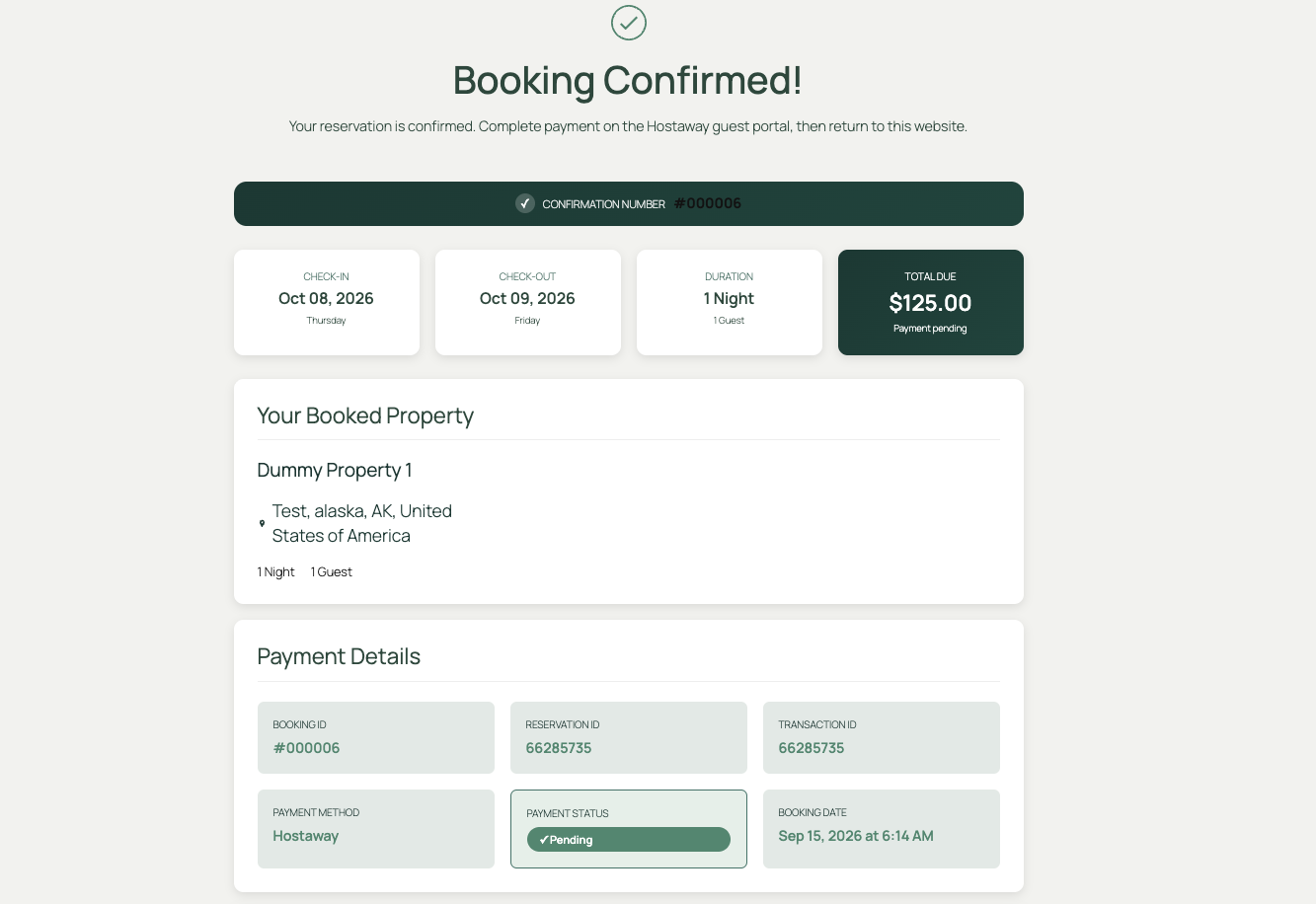
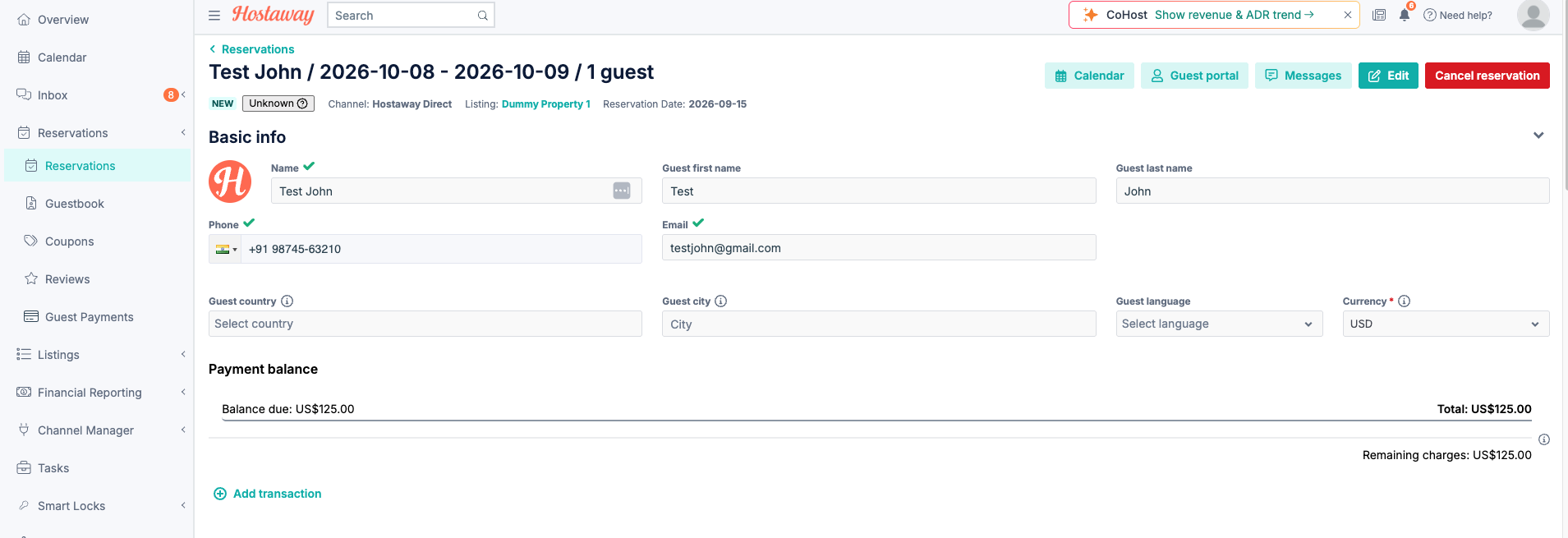
- In Hostaway → Reservations, find the same stay
Settings
All options below are at Hostaway → Settings. Click Save Changes after you edit a tab. General (including hourly sync) is covered right after activate.
API Settings
Keys and connection tools. Found at Hostaway → Settings → API Settings. Same fields as Connect and test.
- Hostaway Client ID: Account ID from Marketplace → Bizdesire → Create API Key.
- Hostaway Client Secret: API key from the same Hostaway panel. Never publish it.
- Booking Engine Subdomain: Optional Booking Engine hostname.
- Test Connection: Confirms keys and reports listing count.
- Preview Listings: Lists Hostaway names without creating WordPress posts.
- Clear Cache: Forces the next API request to skip cached responses.
Payment
Which gateway guests see at checkout. Found at Hostaway → Settings → Payment. Only the selected gateway appears on the checkout page.
Payment Gateways
Choose one radio option. Hostaway Guest Portal (Hostaway) creates the reservation in Hostaway and sends the guest to Hostaway to pay. Card details are never collected or stored by WordPress.
Enable Hostaway Payments
When checked, checkout uses Hostaway’s payment flow. Turn this off only if you are not taking Hostaway payments on this site.
Currency
Fallback currency for listings that do not yet have a currency from Hostaway. Re-import properties or run Test Connection to sync currency from Hostaway. Guests see this symbol on cards, checkout, and the thank-you page.
Pages
Which WordPress pages run the catalog, search, checkout, and thank-you screens. Found at Hostaway → Settings → Pages. These pages are created on activate; you can point each dropdown at a different published page. Do not use a WooCommerce Cart or Checkout page for Hostaway checkout.
Properties Archive Page
The catalog of listings. The page must contain the properties shortcode, for example:
[bizdex_ha_properties mode="grid" search="yes" load_more="yes" columns="3"]
Checkout Page
Where guests finish a stay. Must contain:
[bizdex_ha_checkout]
Book Now on a listing sends the guest here with dates and guest count.
Search Page
Filtered results. Use the properties shortcode with search enabled, for example:
[bizdex_ha_properties mode="grid" search="yes" load_more="yes" columns="2"]
Thank You Page
Shown after the reservation is created. Guests see confirmation details and a Complete payment button for the Hostaway guest portal. You do not add a shortcode here; the plugin renders this page.
Display
How listing grids and cards look. Found at Hostaway → Settings → Display.
Default Grid Columns
Default columns on the properties grid: 1, 2, 3, or 4. Shortcodes can override this with columns.
Properties Per Page
How many listings load at once (1–100). Used by the archive and by shortcodes unless per_page is set.
Property Card Images
Carousel (Multiple Images) lets guests swipe photos on each card. Single Image (First Image Only) shows only the first photo.
Carousel Settings
Shown when Property Card Images is Carousel:
- Enable autoplay: Advances photos on their own.
- Autoplay Speed: Milliseconds between slides (1000–10000). Default 3000.
- Show navigation dots: Dots under the photos.
- Show navigation arrows: Previous/next arrows on the card.
Show Search Bar (archive)
When checked, the properties archive shows the date and guest search bar above the grid.
Load More / Pagination (archive)
Load More Button appends the next set of listings on the same page. Standard Pagination uses page numbers. None (Show All) prints every published listing at once.
Grid Columns (search page)
Columns on the Search page only. Independent from Default Grid Columns on the archive.
Show Search Bar (search page)
When checked, the Search page keeps the filter bar above results.
Load More / Pagination (search page)
Same three choices as the archive, applied only to the Search page.
Update All Pages Now
Writes the current Display settings onto the Properties and Search pages. Use this after you change columns, search, or load-more so those pages match the tab.
Emails
Subjects and live previews. Found at Hostaway → Settings → Emails. Subject lines use curly-brace placeholders such as {booking_id}. A # before {booking_id} is kept as a literal hash (for example #{booking_id}).
Customer Booking Confirmation Email
Sent to the guest after the reservation is created. Email Subject is the subject line. The HTML body comes from the plugin confirmation template. The preview uses sample data only.
Admin Notification Email
Sent when a new booking arrives.
- Admin Email Address: Inbox that receives the notice. Defaults to the WordPress admin email.
- Email Subject: Subject for that notice, with the same placeholders.
Welcome Email
Sent after a guest creates an account. Email Subject can use {user_name}, {username}, {email}, {site_name}, {site_url}, and {dashboard_url}.
Booking Cancellation Email
Sent to the guest if a booking is cancelled. Email Subject can use {guest_name}, {booking_id}, {property_name}, {check_in}, {check_out}, {total_amount}, {site_name}, and related placeholders.
Shortcodes
Put these on any page or post. Display tab values are the defaults when you omit an attribute.
Properties grid
[bizdex_ha_properties search="yes" columns="3" per_page="12" load_more="yes"]
- search:
yesshows the search bar.nohides it. - columns: Grid columns (1–4).
- per_page: Listings per page.
- load_more:
yesuses a Load More button instead of numbered pages. - pagination:
yesshows page numbers when load more is off. - carousel:
yesuses the card photo carousel when Display allows it.
Checkout
[bizdex_ha_checkout]
Use this only on the Checkout page selected under Pages. Do not put it on a WooCommerce checkout page.
If something fails
| Problem | What to try |
|---|---|
| Connection test fails | Re-copy keys, Save, then Test. Confirm the keys still exist in Hostaway. |
| Preview is empty | Add a listing in Hostaway, Clear Cache, preview again. |
| Public page is empty | Publish the property, import (not only preview), clear cache. |
| Calendar does not match | Refresh, Clear Cache, pick dates again. Do not book until Hostaway matches. |
| Booking missing in Hostaway | Confirm you reached Thank You. Search Reservations by guest email. |
Questions and support
Something missing from this documentation? Still have questions and need assistance?
Include your site URL, the steps you clicked, the on-screen message, and listing name/dates if it is a booking issue.
Bizdesire: bizdesire.co · This guide: bizdesire.co/docs/hostaway-wordpress-connector