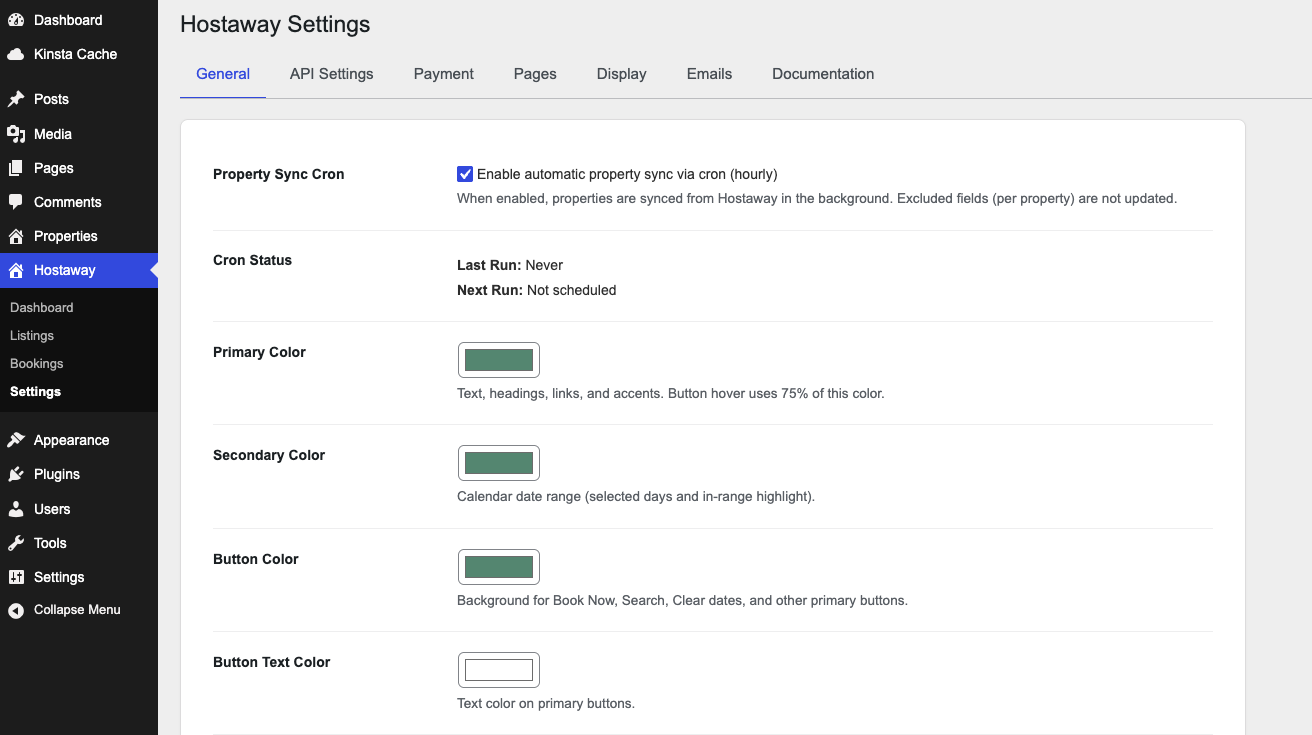
Connect Hostaway to WordPress, import listings, and take a test booking. After you activate the plugin, settings are at Hostaway → Settings.
Before you start
Hostaway is your source of truth. WordPress is the public site. This plugin copies listings down from Hostaway and sends bookings back up.
- A Hostaway account with at least one listing
- WordPress admin access (
/wp-admin) - The Bizdesire Advanced Connector for Hostaway plugin
Get Hostaway keys
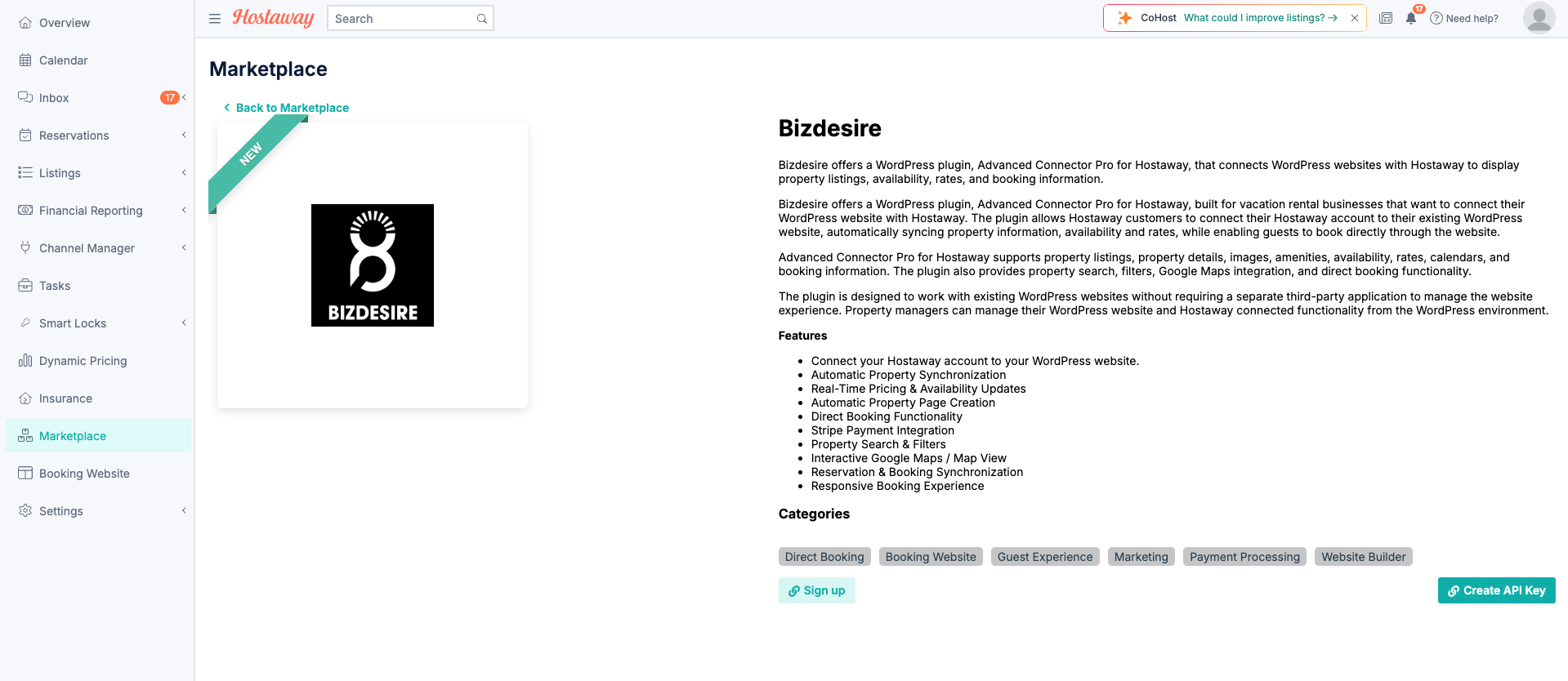
Your Hostaway email and password will not work in WordPress. Create an API key in Hostaway (Bizdesire partner), then paste it into the plugin.
- Go to the Hostaway Dashboard
- Open
- Search for Bizdesire and open it
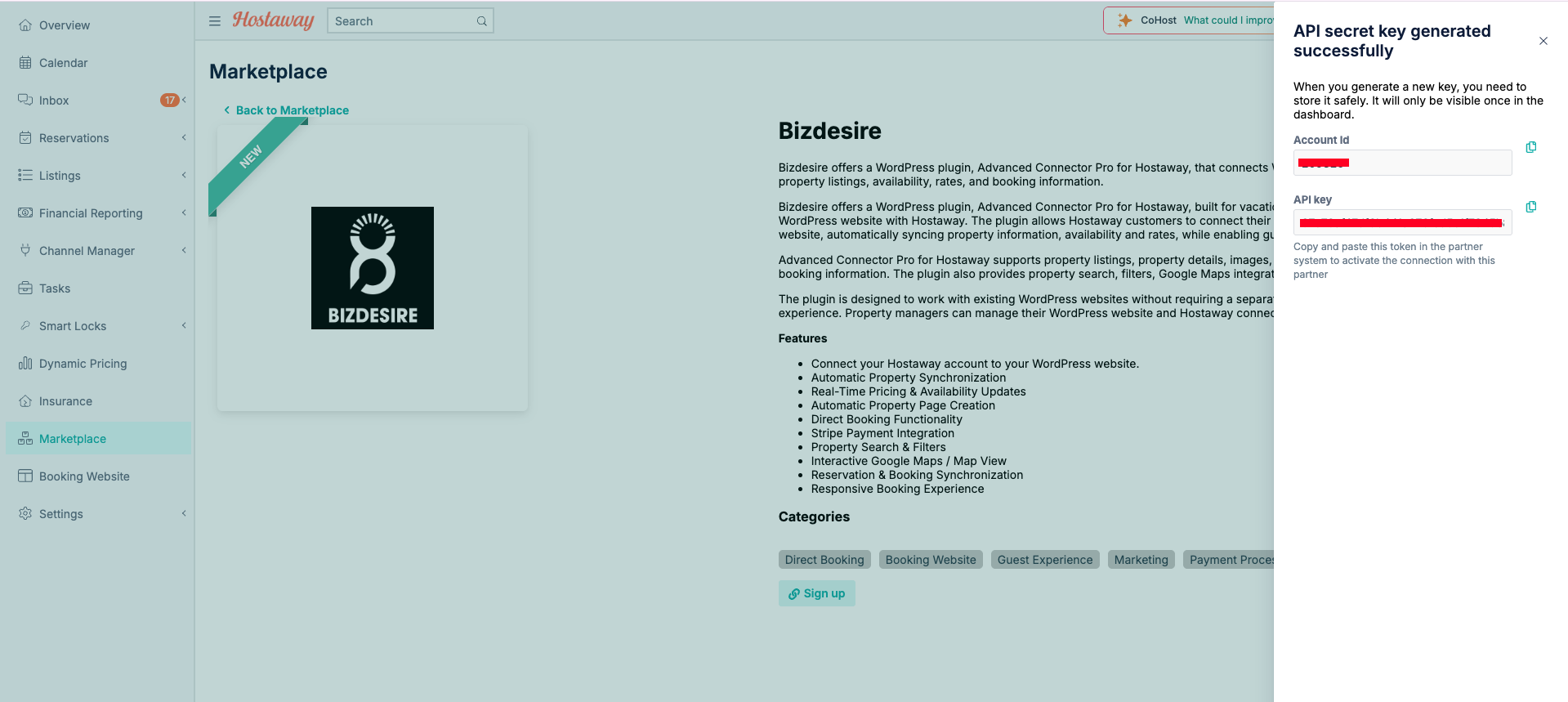
- Click Create API Key
- Copy the Account ID and API key — the key is shown only once
- Keep them somewhere safe for later
Install the plugin
- WordPress → →
- Search Bizdesire Advanced Connector for Hostaway, or upload the zip
- Install, then Activate
A menu appears. The plugin also creates Properties, Search, Checkout, and Thank You pages.
Connect and test
- In WordPress, open → →
- Paste your Account ID and API key from Hostaway (no extra spaces)
- Optionally enter a Booking Engine subdomain if you use Hostaway Booking Engine
- Click Save Changes
- Click Test Connection — confirm it succeeds before you import
- Optionally click Preview Listings or Clear Cache
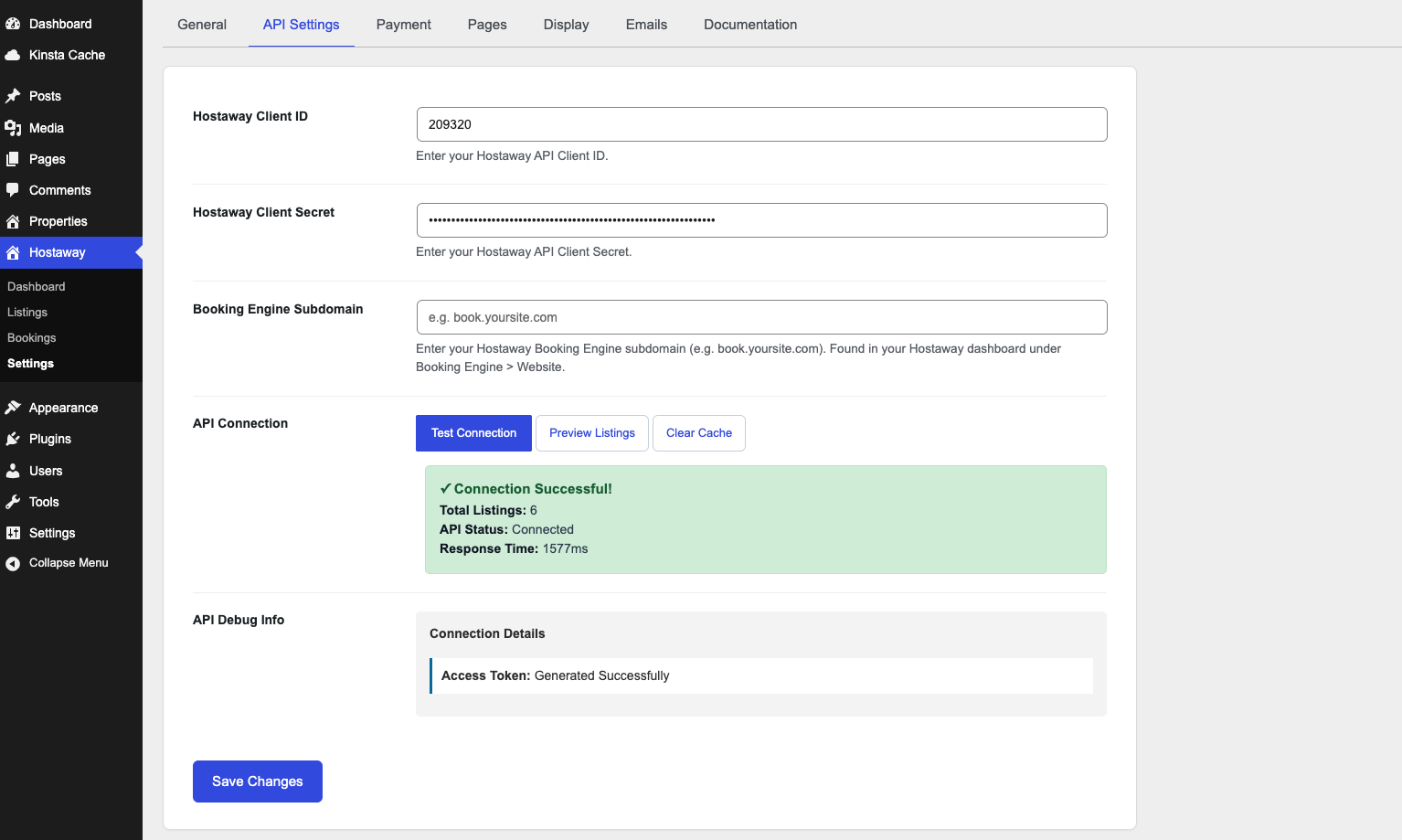
If the test fails: re-paste both keys (no spaces), save, then test again. Do not import until this works.
Copy listings
Go to → . Import one listing first, check it, then import the rest.
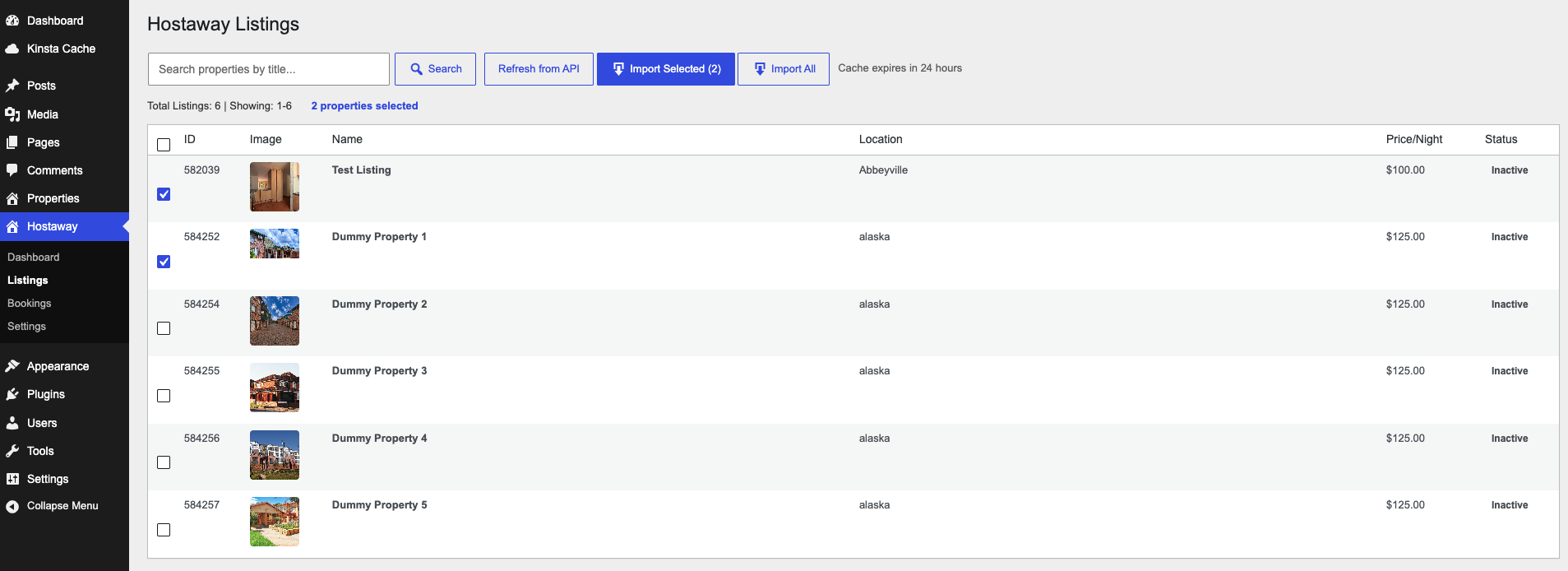
Photos, description, amenities, rules, prices, and calendar come from Hostaway. Importing again updates an existing property.
Check the public site
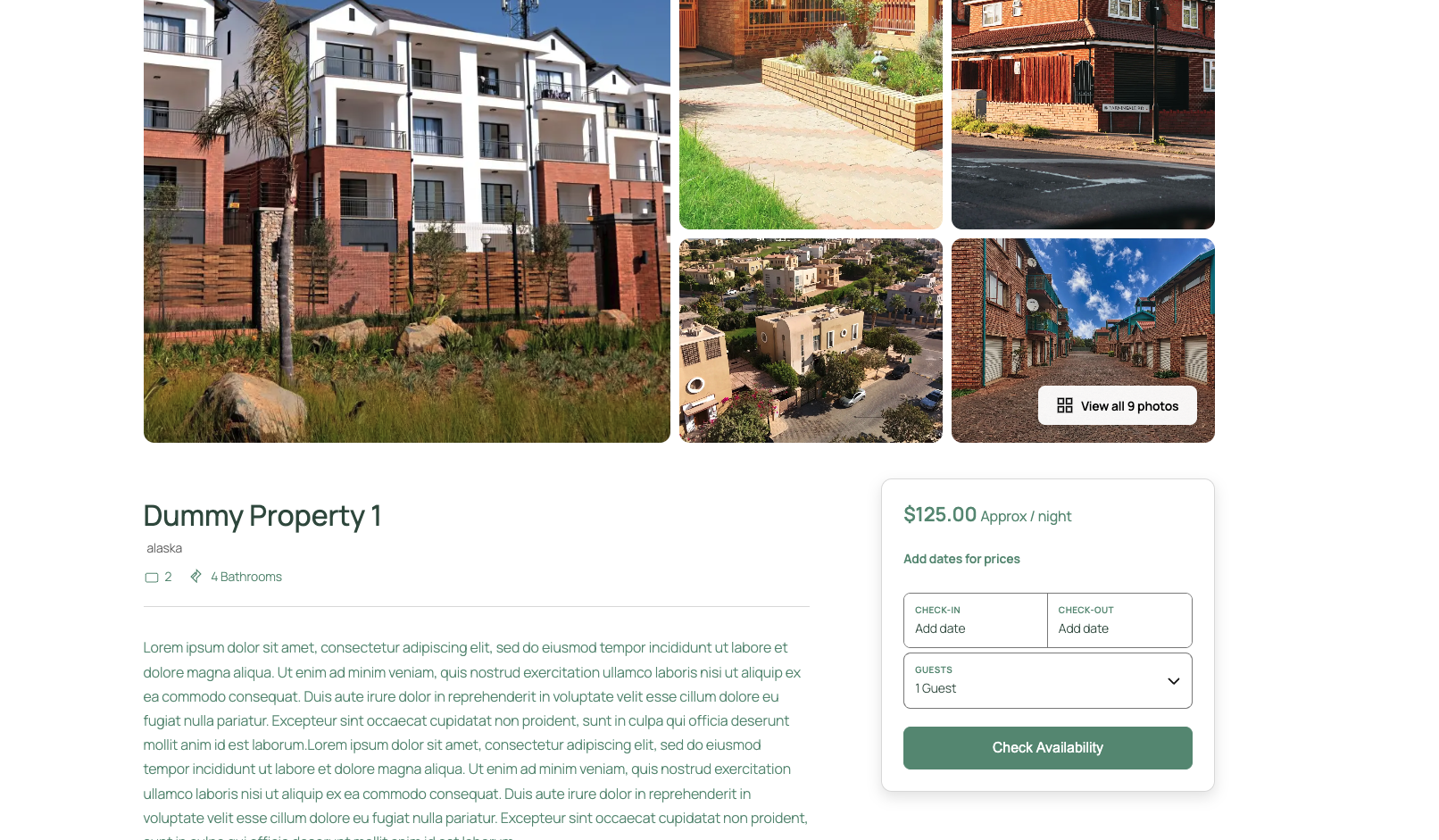
- Open the Properties page and click the listing
- Confirm photos, details, and calendar look right
- Make sure the property is Published, not Draft
Colors and grid: → . Pages: → .
Test a booking
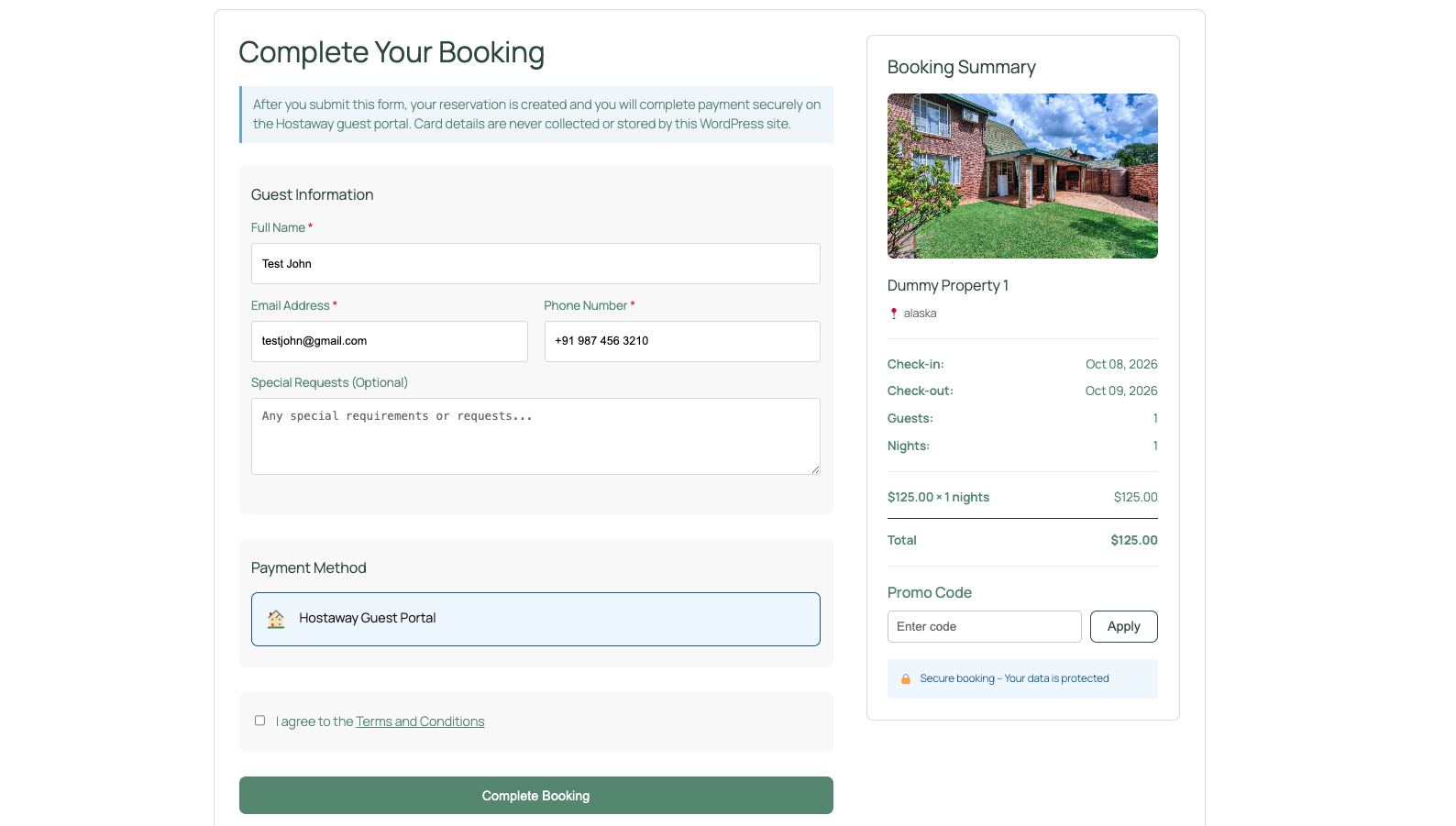
- On the property page, pick free dates and confirm the total
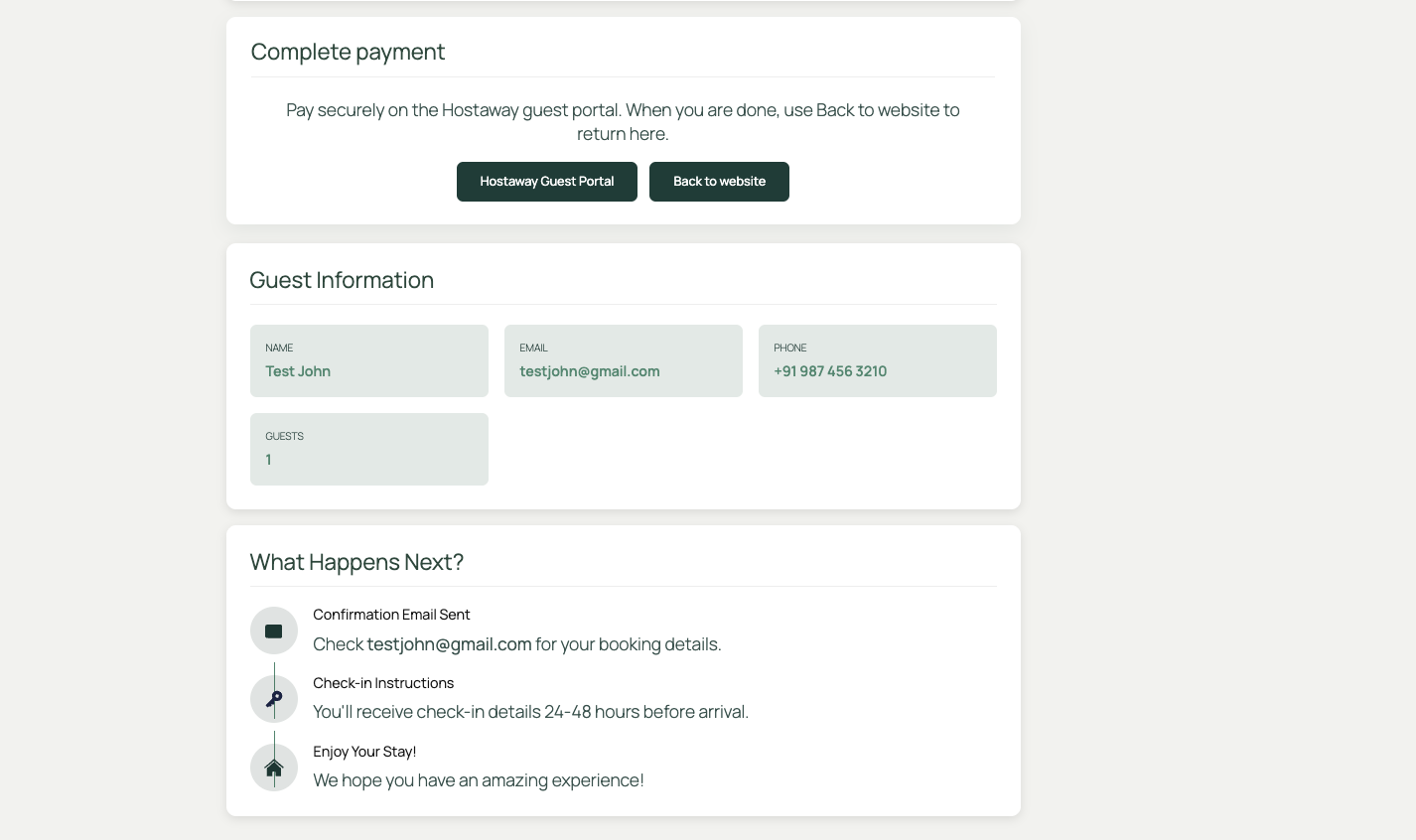
- Checkout: name, email, phone, then complete booking
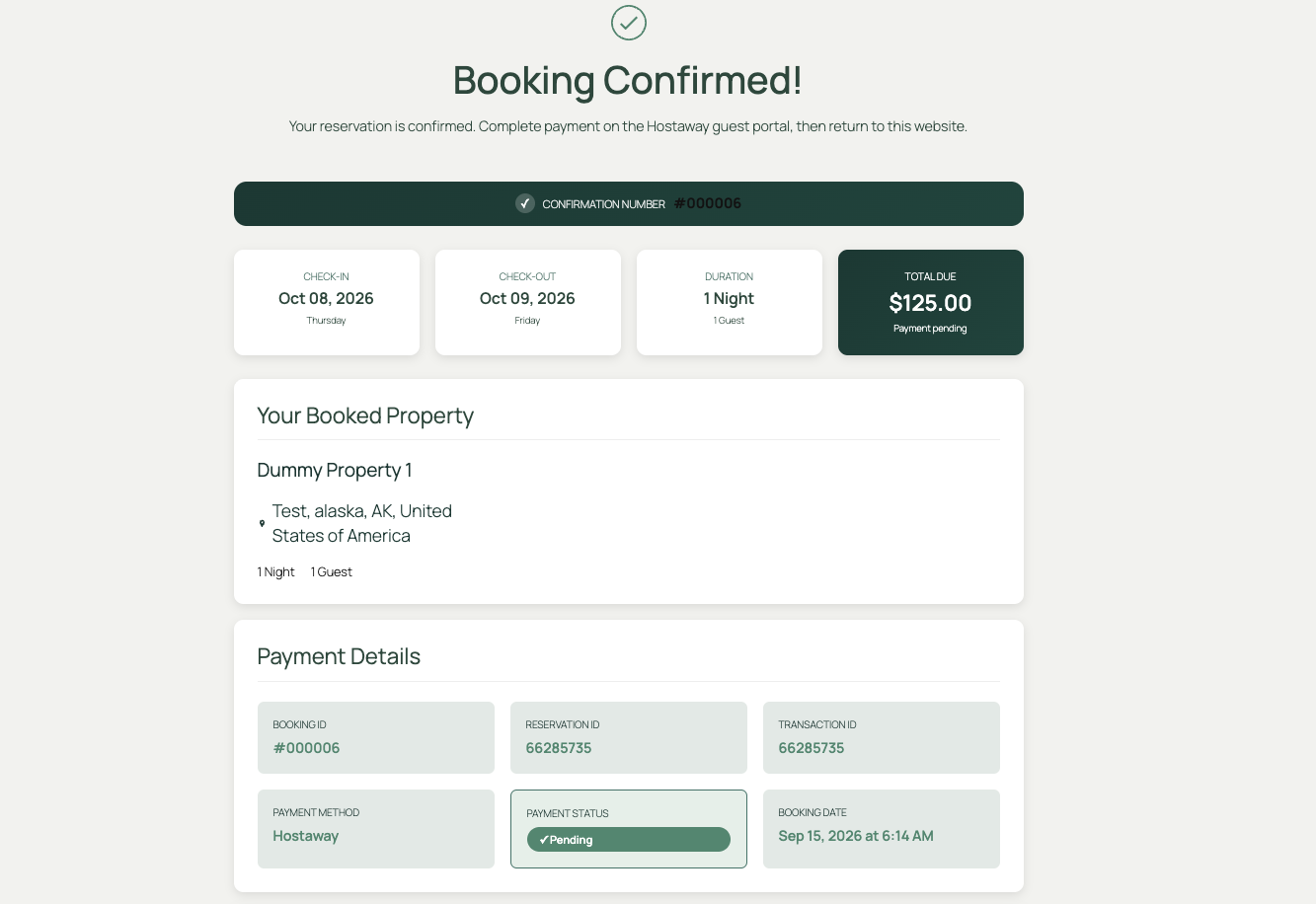
- You should land on the Thank You page
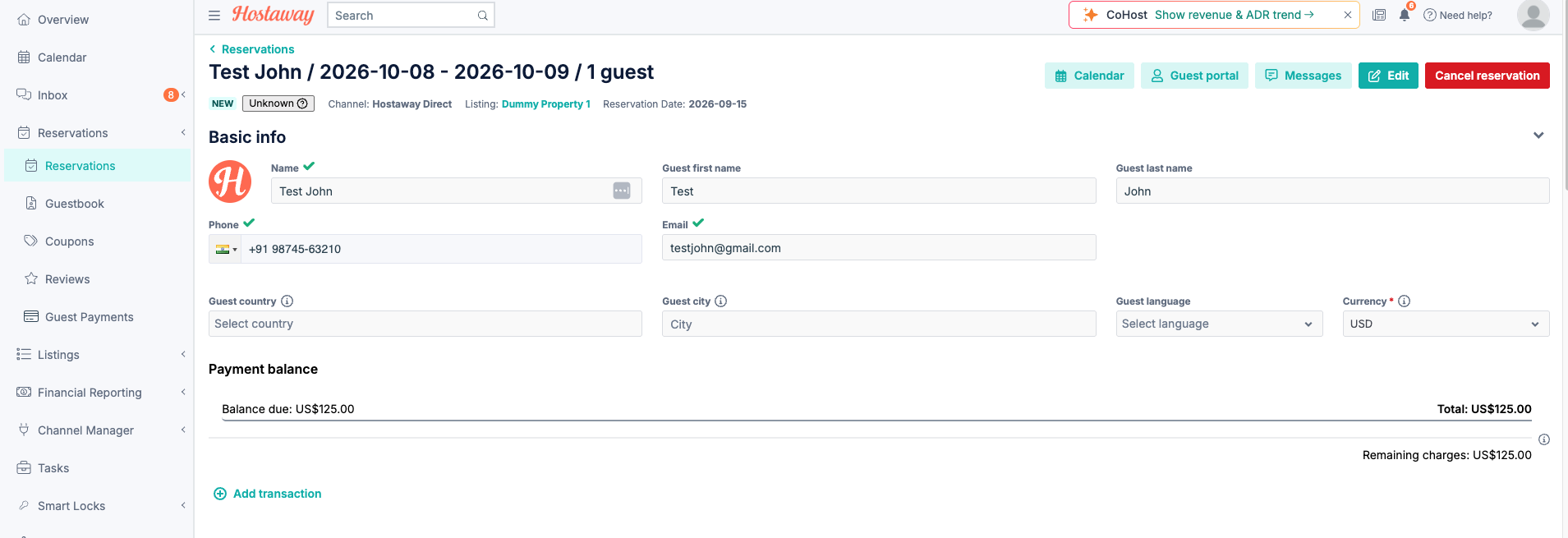
- In Hostaway → Reservations, find the same stay
Pages
At Hostaway → Settings → Pages, choose the WordPress pages for Properties, Search, Checkout, and Thank You. Created on activate. Do not use a WooCommerce cart/checkout page for Hostaway checkout.
Display
At Hostaway → Settings → Display, set grid columns, listings per page, card images, search bar, and load more / pagination. Use Update All Pages Now after changes.
Emails
At Hostaway → Settings → Emails, edit subjects for guest confirmation, admin notice, welcome, and cancellation. Placeholders like {booking_id} are supported.
Shortcodes
[bizdex_ha_properties search="yes" columns="3" per_page="12" load_more="yes"]
[bizdex_ha_checkout]
Use checkout only on the Checkout page selected under Pages.
If something fails
| Problem | What to try |
|---|---|
| Connection test fails | Re-copy keys, Save, then Test. Confirm the keys still exist in Hostaway. |
| Preview is empty | Add a listing in Hostaway, Clear Cache, preview again. |
| Public page is empty | Publish the property, import (not only preview), clear cache. |
| Calendar does not match | Refresh, Clear Cache, pick dates again. Do not book until Hostaway matches. |
| Booking missing in Hostaway | Confirm you reached Thank You. Search Reservations by guest email. |
Questions and support
Something missing from this documentation? Still have questions and need assistance?
Include your site URL, the steps you clicked, the on-screen message, and listing name/dates if it is a booking issue.
Bizdesire: bizdesire.co