💻 Techtober Sale: Save 50% on Hostaway & Uplisting Plugins | Code: TECHTOBER | Offer Ends October 31st!


💻 Techtober Sale: Save 50% on Hostaway & Uplisting Plugins | Code: TECHTOBER | Offer Ends October 31st!



If you use Uplisting to handle vacation rentals, your website should be more than just a brochure; it should also be a way to book. Guests want to be able to search, see what’s available, and book right away. If you have to update listings by hand or direct people to third-party sites, you lose conversions and control.
This guide will show you how to use Uplisting WordPress Connector Pro to connect Uplisting to WordPress and make your site a fully functional, real-time booking platform.
Buy Uplisting WordPress Connector Pro
Most hosts depend on the following without a direct integration:
This causes problems, old data, and lost sales.
That’s exactly what Uplisting WordPress Connector Pro does.
Before you begin, check to see if you have:
Get Uplisting WordPress Connector Pro.
To add a new plugin to WordPress, go to Plugins and then Add New.
Put the ZIP file on your computer and turn it on.
When you turn it on, a new Uplisting options window will show up in your WordPress dashboard.
Open the options for the plugin.
Put your Uplisting API key here.
Press Connect.
That’s all.
Your properties are now automatically pulled in, along with:
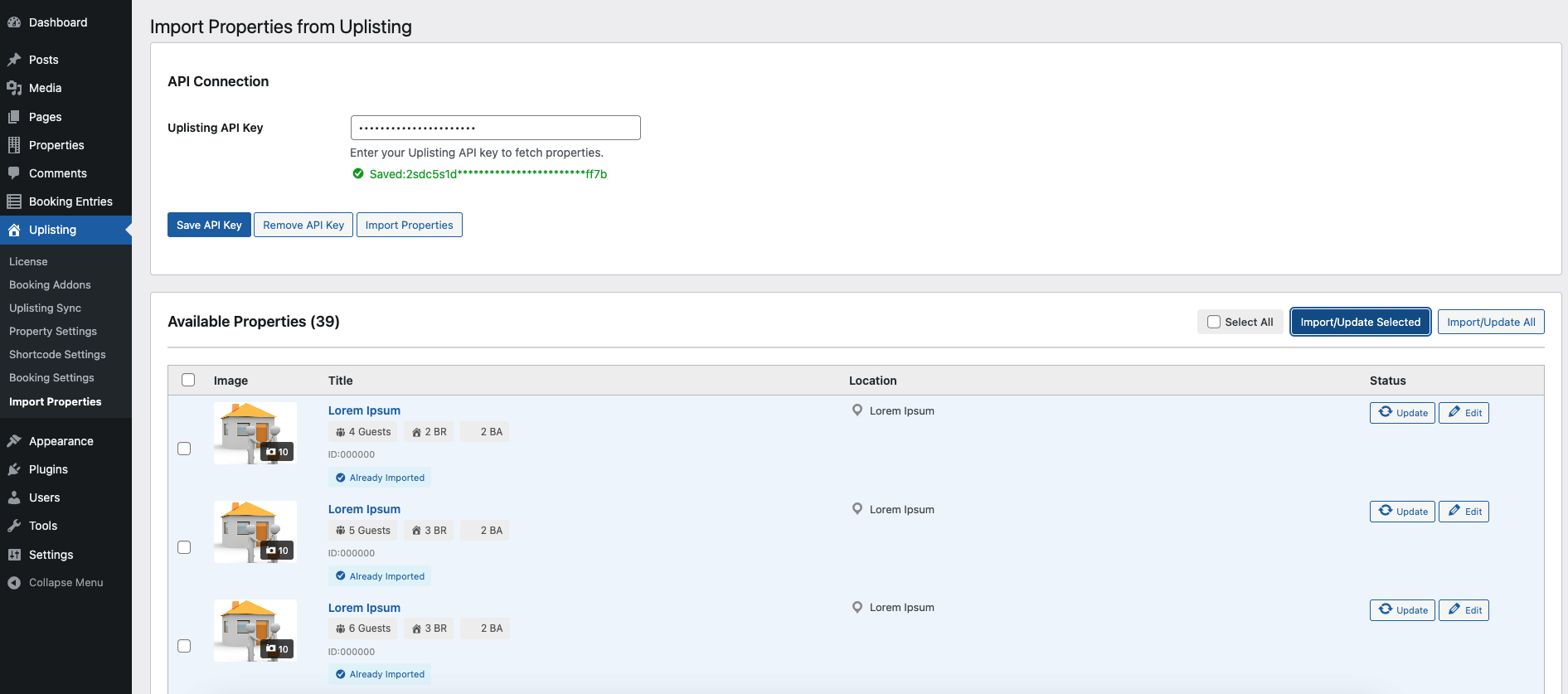
The plugin makes pages that are ready to use right away, like:
Pages that list properties (with or without a map)
Pages with details about each property
A whole booking process on your site
No need for special development.
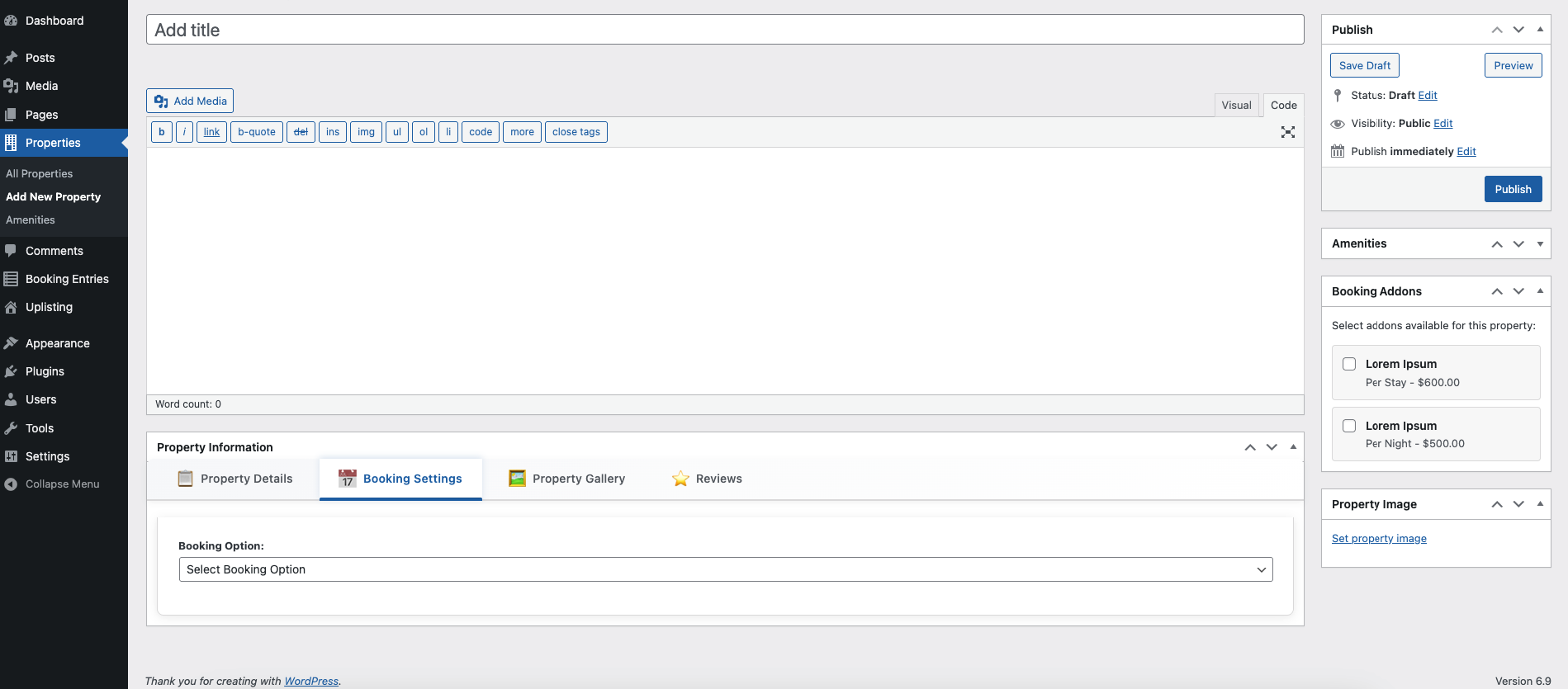
You can change the style of these pages with your theme or page builder because they are completely changeable.
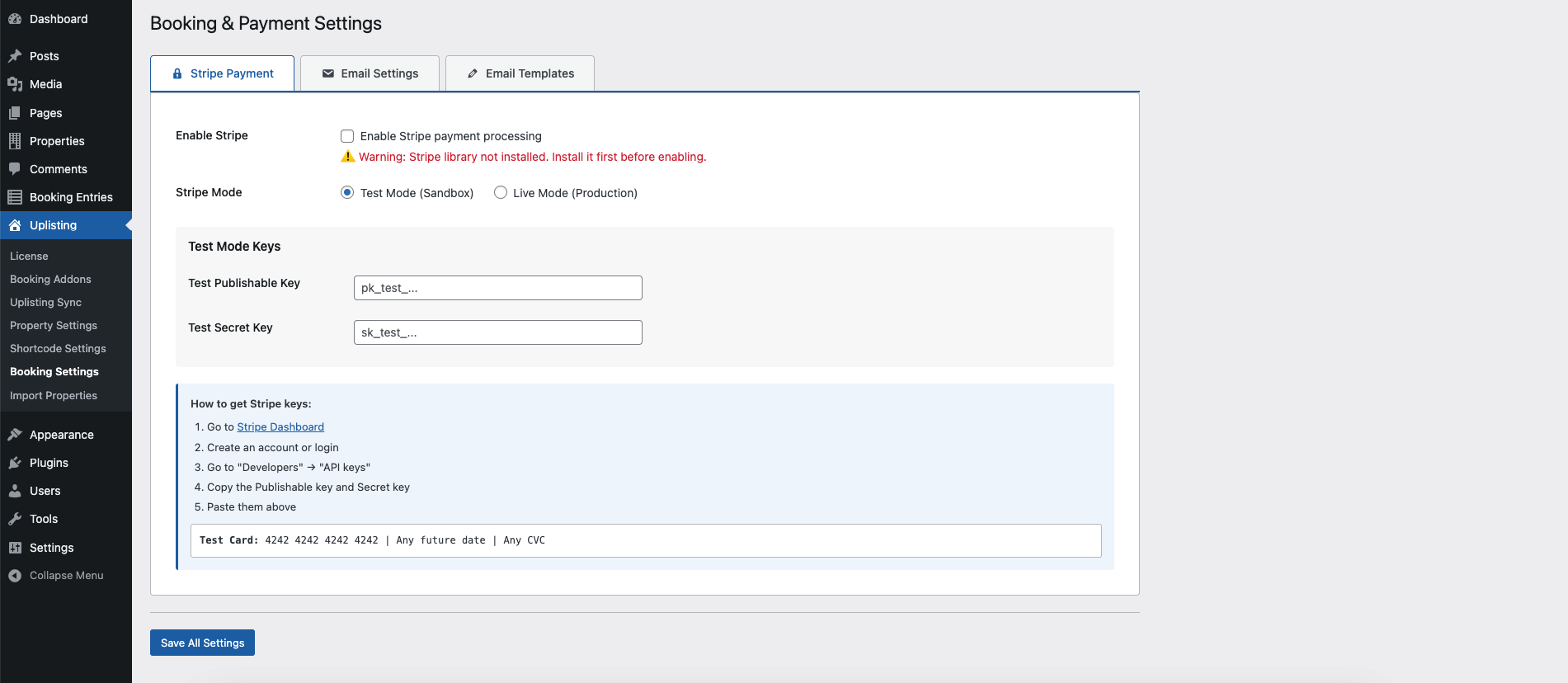
There are built-in Stripe options inside the plugin:
Link your Stripe account.
Turn on payments.
Start taking reservations directly on your site.
Guests may now pay, pick dates, and search without leaving your site.
You have full control over this:
Income
Information about guests
Experience with the brand
👉 Get Uplisting WordPress Connector Pro
You can put the plugin’s powerful shortcodes anywhere:
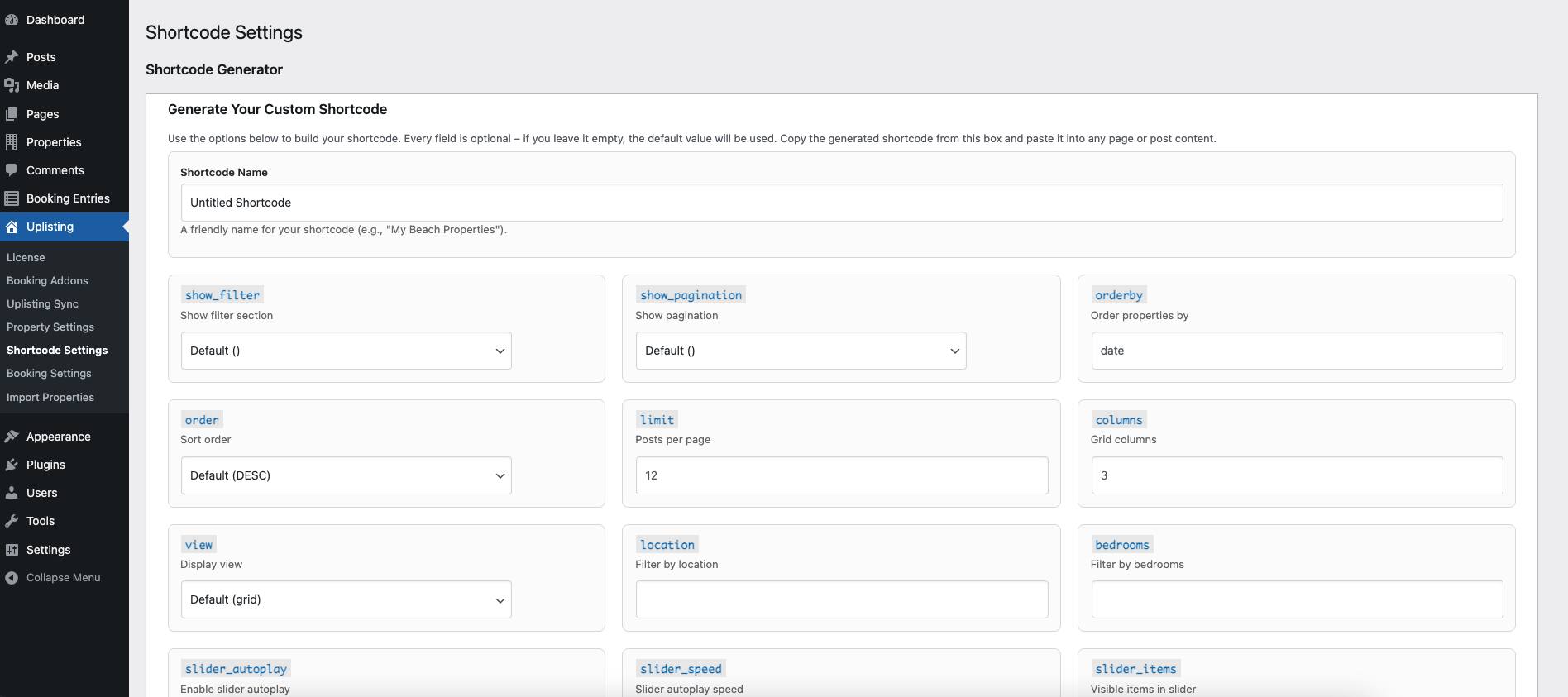
Everything stays in line with Uplisting all the time.
This integration is great for:
This is the quickest method to take charge of your bookings and make sure everything stays in harmony.
It doesn’t have to be hard to connect Uplisting to WordPress. You can do the following with Uplisting WordPress Connector Pro:
Don’t send guests anywhere else. Make your website the main place where people can book.
👉 Get the Uplisting WordPress Connector Pro now
You can integrate Uplisting with WordPress by using a dedicated connector plugin that syncs your Uplisting listings, availability, pricing, and bookings directly to your WordPress website.
No, with a Uplisting WordPress connector plugin, you don’t need coding skills. The plugin handles the connection and sync automatically once installed and configured.
Once integrated, you can sync property listings, real-time availability calendars, pricing, booking forms, and guest inquiry systems seamlessly between Uplisting and your WordPress site.
Yes, after integration, you can display booking forms on your WordPress site that allow guests to book directly, reducing reliance on OTAs and avoiding extra commission fees.
Yes, with the integration in place, calendars on your WordPress site will automatically update based on Uplisting availability, preventing double bookings and keeping all channels in sync.
The recommended solution is the Uplisting WordPress Connector Pro plugin, which is specifically built to sync Uplisting with WordPress reliably and efficiently.
Most modern themes are compatible. If your theme supports standard WordPress template structures and shortcodes, the integration should work out of the box.
Yes, direct booking pages with real-time content and structured data help search engines index your listings better and reduce dependency on third-party platforms.






 NDA? Absolutely — your idea stays protected.